 pir8g33k
How to Configure FortiGate Logging for Microsoft Sentinel (CEF via AMA)
One of the most common reasons FortiGate detections fail in Microsoft Sentinel is not bad KQL. It is missing telemetry. Many organizations successfully configure FortiGate log forwarding and see data arriving in the CommonSecurityLog table, but later discover that critical security events such as VPN authentication failures, administrator logins, configuration changes, and user activities never reach Sentinel.
Overview
This guide covers the exact FortiGate logging configuration required to support VPN brute force detection, password spray detection, successful login after multiple failures, administrator login monitoring, configuration change monitoring, threat hunting, and incident investigation.
Target Architecture
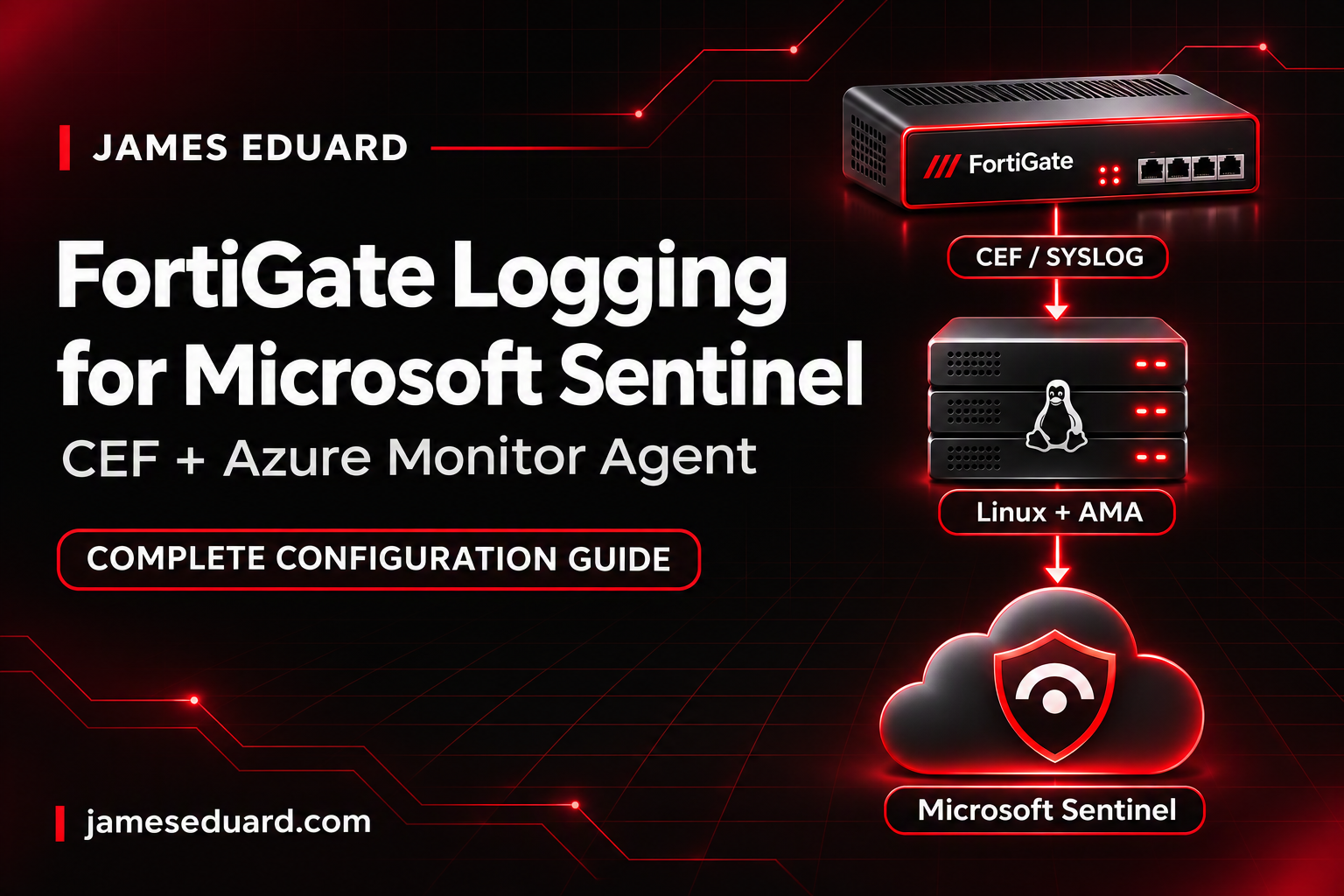
FortiGate -> Linux Syslog Host (Azure Monitor Agent) -> Microsoft Sentinel
Understanding FortiGate Log Types
Traffic Logs
Examples include Connection Failed, Traffic Allowed, Traffic Denied and Session End.
User Logs
Examples include User login succeeded, User login failed and Authentication failed.
VPN Logs
Examples include SSL VPN login successful, SSL VPN login failed and SSL user failed to log in.
System Logs
Examples include Administrator login failed, Administrator login successful and Configuration modified.
Step 1 – Verify Syslog Forwarding
Navigate to Log & Report > Log Settings and configure Syslog forwarding in CEF format.
config log syslogd setting
 set status enable
 set server 10.10.10.10
 set mode udp
 set port 514
 set facility local7
 set format cef
end
Step 2 – Enable Required Logging Categories
- System Events
- User Events
- VPN Events
- Administrator Events
- Security Events
- Event Logs
Step 3 – Enable SSL VPN Logging
Generate and verify events such as SSL VPN login failed, SSL user failed to log in and SSL VPN tunnel established.
Step 4 – Enable Administrator Logging
Verify administrator auditing is enabled and monitor administrator login failed, administrator login succeeded and configuration changes.
Step 5 – Generate Validation Events
Perform a failed administrator login, a failed SSL-VPN login and a successful login to ensure events are generated.
Step 6 – Verify Syslog Transmission
sudo tcpdump -ni any port 514
Generate a failed login and verify traffic is sent to the collector.
Step 7 – Verify AMA Collection
sudo systemctl status azuremonitoragent
sudo systemctl status mdsd
Step 8 – Verify Sentinel Reception
CommonSecurityLog
| where TimeGenerated > ago(1h)
| where DeviceVendor == "Fortinet"
| take 100
Identify What FortiGate Is Sending
CommonSecurityLog
| where DeviceVendor == "Fortinet"
| extend LogDesc=extract(@"FTNTFGTlogdesc=([^;]+)",1,AdditionalExtensions)
| summarize Count=count() by LogDesc
| order by Count desc
Verify Available Log Subtypes
CommonSecurityLog
| where DeviceVendor == "Fortinet"
| extend SubType=extract(@"FTNTFGTsubtype=([^;]+)",1,AdditionalExtensions)
| summarize Count=count() by SubType
Desired values include traffic, vpn, event, user, system and utm.
Verify User Information Exists
CommonSecurityLog
| where DeviceVendor == "Fortinet"
| project TimeGenerated, SourceUserName, DestinationUserName, Message
| take 100
Common Issues
VPN brute-force rule fires on IPsec events
Do not use generic activity filters that match all VPN events.
Empty UserList
This usually indicates authentication logs are not being forwarded.
No SSL-VPN logs
Verify SSL-VPN logging is enabled on the firewall.
Production Validation Checklist
- CEF forwarding enabled
- VPN events enabled
- User events enabled
- System events enabled
- Administrator events enabled
- Usernames populated
Conclusion
Before building Microsoft Sentinel detections, verify that FortiGate is forwarding authentication, VPN, administrator, system and user telemetry. Detection quality depends on data quality.