 pir8g33k
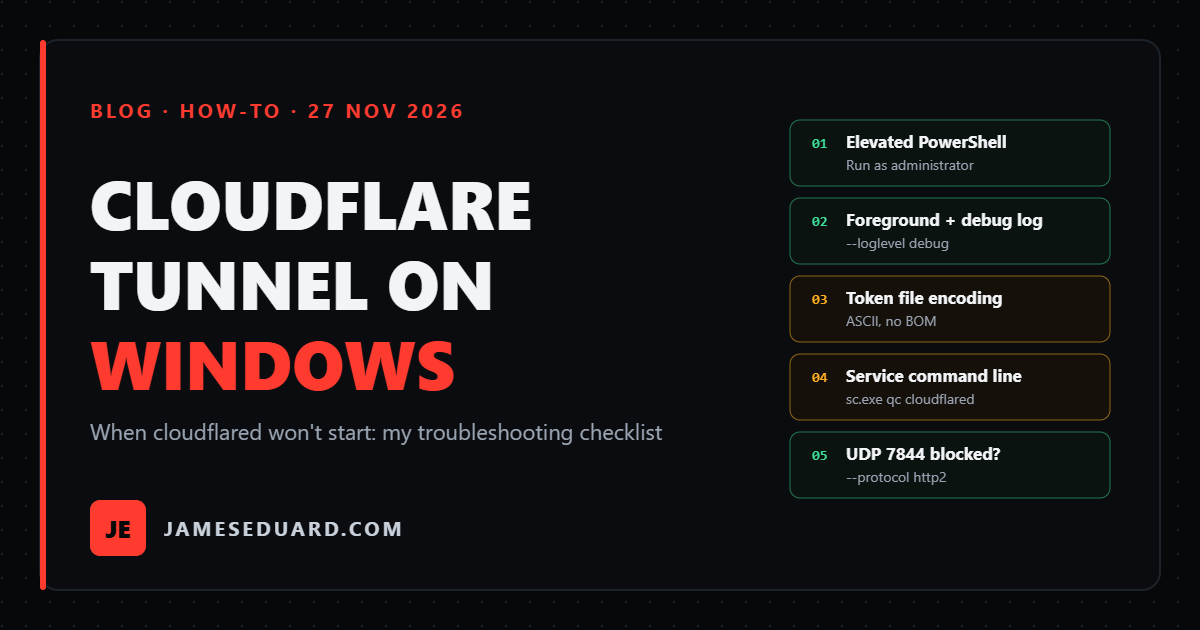
I set up a Cloudflare Tunnel on a Windows box this week and it would not start, from the command line or as a service. It turned out to be a mix of small things: a PowerShell window that was not elevated, a service with no arguments, and a token file in the wrong encoding. These are the checks I now go through, in order, whenever cloudflared misbehaves on Windows.
What I was trying to do
The setup is a remotely managed tunnel (created in the Zero Trust dashboard, so the config lives at Cloudflare and the machine only needs a token). The MSI installs cloudflared.exe under C:\Program Files (x86)\cloudflared\. I kept the token in a file so it would not sit in my shell history, and tried this:
& "C:\Program Files (x86)\cloudflared\cloudflared.exe" tunnel run --token-file "C:\ProgramData\cloudflared\token"
Start-Service cloudflared
Neither worked. Here is how I worked through it.
1. Use an elevated PowerShell
This was the actual fix in my case, and it is easy to miss. Starting, stopping and reconfiguring a Windows service needs admin rights, and so does reading files under C:\ProgramData\cloudflared if the folder was created from an admin session. From a normal window you get “Access denied”, or the command just fails quietly. Right-click PowerShell, choose Run as administrator, and check before you go further:
([Security.Principal.WindowsPrincipal][Security.Principal.WindowsIdentity]::GetCurrent()).IsInRole([Security.Principal.WindowsBuiltInRole]::Administrator)
# True = elevated
2. Run it in the foreground with debug logging
Before touching the service, make the tunnel work interactively. If it does not work here, it will not work as a service either, and the foreground gives you the actual error message.
$cf = "C:\Program Files (x86)\cloudflared\cloudflared.exe"
& $cf --version
& $cf tunnel --loglevel debug run --token-file "C:\ProgramData\cloudflared\token"
Healthy output ends with four “Registered tunnel connection” lines, one per edge connection. Two things commonly break at this step.
Your cloudflared is too old for –token-file
The --token-file flag (also TUNNEL_TOKEN_FILE) only arrived in cloudflared 2025.4.0. An older binary stops with “flag provided but not defined”. Either update it, or read the file yourself and pass the token:
winget upgrade Cloudflare.cloudflared

# or, on an old build:
& $cf tunnel run --token (Get-Content C:\ProgramData\cloudflared\token -Raw).Trim()
The token file is UTF-16
Windows PowerShell 5.1 writes UTF-16 with a byte-order mark when you use echo ... > token or Out-File. The file looks fine in Notepad, but cloudflared reads garbage and rejects the token. Write it as plain ASCII without a trailing newline:
Set-Content -Path C:\ProgramData\cloudflared\token -Value "eyJh...yourtoken" -Encoding ascii -NoNewline

# check: the first bytes should be 65 79 4A (e, y, J), not FF FE
Format-Hex C:\ProgramData\cloudflared\token | Select-Object -First 1
While you are there, lock the file down. It is the tunnel’s secret, so only SYSTEM and Administrators need to read it:
icacls C:\ProgramData\cloudflared\token /inheritance:r /grant:r "SYSTEM:R" "Administrators:F"3. Check what the service actually runs
When Start-Service fails, or the service starts and stops again straight away, look at its command line:
sc.exe qc cloudflared

Get-CimInstance Win32_Service -Filter "Name='cloudflared'" |
  Select-Object Name, StartName, State, StartMode, PathName
If PathName is only the path to cloudflared.exe with no arguments, that is the problem. With no arguments the service falls back to looking for a config.yml in the SYSTEM profile (C:\Windows\System32\config\systemprofile\.cloudflared\), which a token-based tunnel does not have, so it exits. The service runs as LocalSystem, so anything you set up under your own user profile is invisible to it.
The cleanest fix is to reinstall the service with the token:
cd "C:\Program Files (x86)\cloudflared"
.\cloudflared.exe service uninstall
.\cloudflared.exe service install eyJh...yourtoken
Start-Service cloudflared
If you want extra flags (a log file, a different protocol), edit the service’s ImagePath value under HKLM\SYSTEM\CurrentControlSet\Services\cloudflared. This is the method Cloudflare documents for Windows. The quotes around the exe path matter because of the spaces:
$exe = '"C:\Program Files (x86)\cloudflared\cloudflared.exe"'
Set-ItemProperty HKLM:\SYSTEM\CurrentControlSet\Services\cloudflared ImagePath `
  "$exe tunnel --loglevel info --logfile C:\ProgramData\cloudflared\cloudflared.log run --token-file C:\ProgramData\cloudflared\token"
Restart-Service cloudflared
Using --token-file in the ImagePath (on 2025.4.0 or later) keeps the token out of the registry, where any local admin can read it. Then make the service start at boot:
Set-Service cloudflared -StartupType Automatic4. It runs but never connects: check the network
By default cloudflared connects over QUIC on UDP port 7844 and is supposed to fall back to HTTP/2 on TCP 7844 when UDP fails. A lot of corporate and hotel networks block outbound UDP, and in practice you can still end up with repeated connection timeouts in the log. Test the port, and if UDP looks like the problem, force HTTP/2:
Test-NetConnection region1.v2.argotunnel.com -Port 7844

& $cf tunnel --protocol http2 run --token-file C:\ProgramData\cloudflared\token
If that works, put --protocol http2 in the service’s ImagePath as well, before run.
5. Where to look when the service dies quietly
- Event Viewer: Windows Logs → Application and System, look for entries from
cloudflaredor the Service Control Manager. Or in PowerShell:Get-WinEvent -LogName Application -MaxEvents 30 | Where-Object ProviderName -like '*cloudflared*' - The log file, if you added
--logfileas above. - The dashboard: Zero Trust → Networks → Tunnels. The tunnel should show as Healthy with your machine listed as a connector.
My checklist
- Admin PowerShell, every time.
cloudflared --version: 2025.4.0 or later if you use--token-file.- Token file in ASCII, no BOM, readable only by SYSTEM and Administrators.
- Works in the foreground with
--loglevel debugbefore you touch the service. sc.exe qc cloudflaredshowstunnel ... run --token(or--token-file), not a bare exe.- Startup type is Automatic, and the tunnel is still Healthy after a reboot.
- If it never connects, try
--protocol http2.
References
- Tunnel run parameters, including editing the Windows service (Cloudflare docs)
- Run cloudflared as a service on Windows, locally-managed tunnels (Cloudflare docs)
- Tunnel with firewall: ports and hostnames (Cloudflare docs)
- cloudflared releases (GitHub)
Tested on Windows with cloudflared installed from the MSI, November 2026. Flags and defaults change between releases, so check cloudflared tunnel run --help on your version.